
Step 1: Connect to the Trailer Network
- Go to the rear of the trailer and open the hatch.
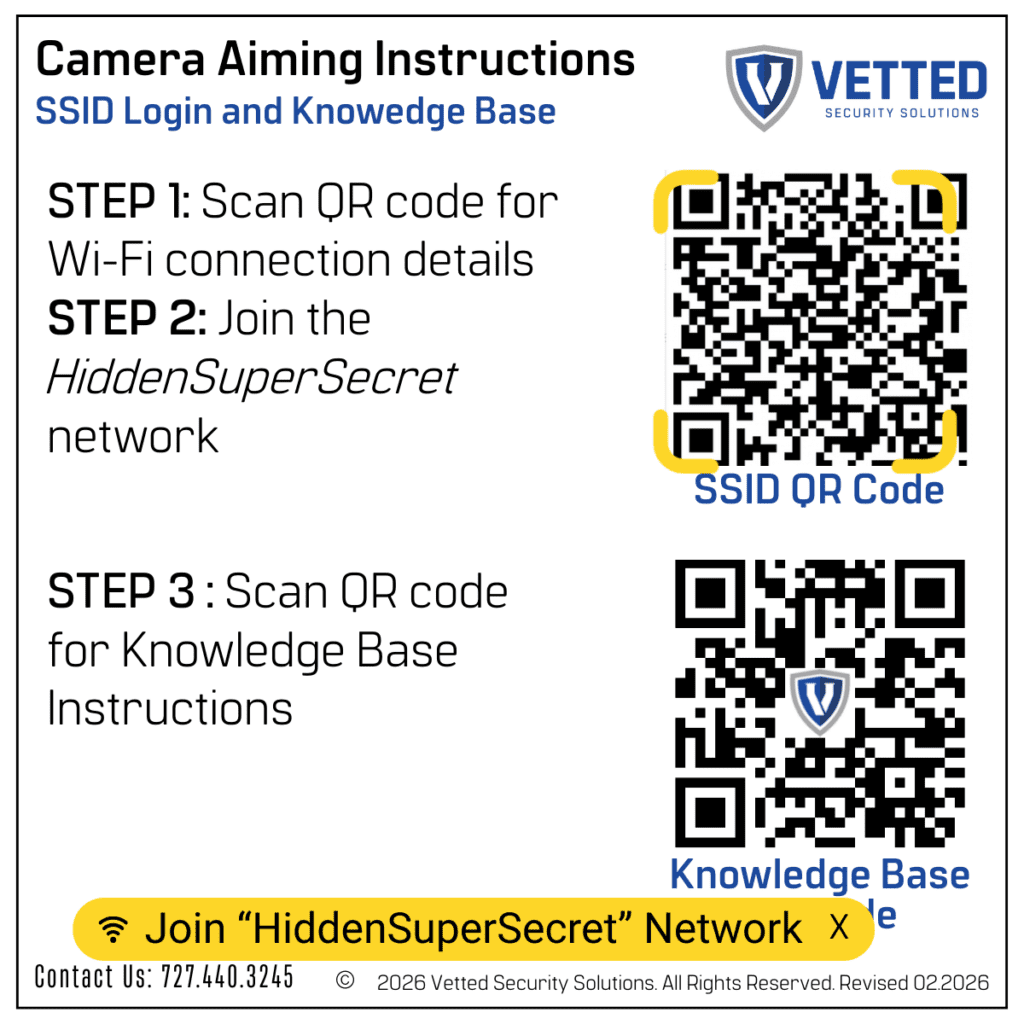
- Inside, locate the sticker containing two QR codes.
- Open the camera application on your phone and scan the QR code labeled “SSID QR Code.”
- Tap the yellow prompt that appears: “Join HiddenSuperSecret Network.”
- A message will appear: “Join Wi-Fi Network ‘Hidden Super Secret.’”
- Select the blue “Join” button.

Your device will now connect to the HiddenSSID network.
Step 2: Access the Camera Interface
- Go to the opposite side of the trailer and open the second box.
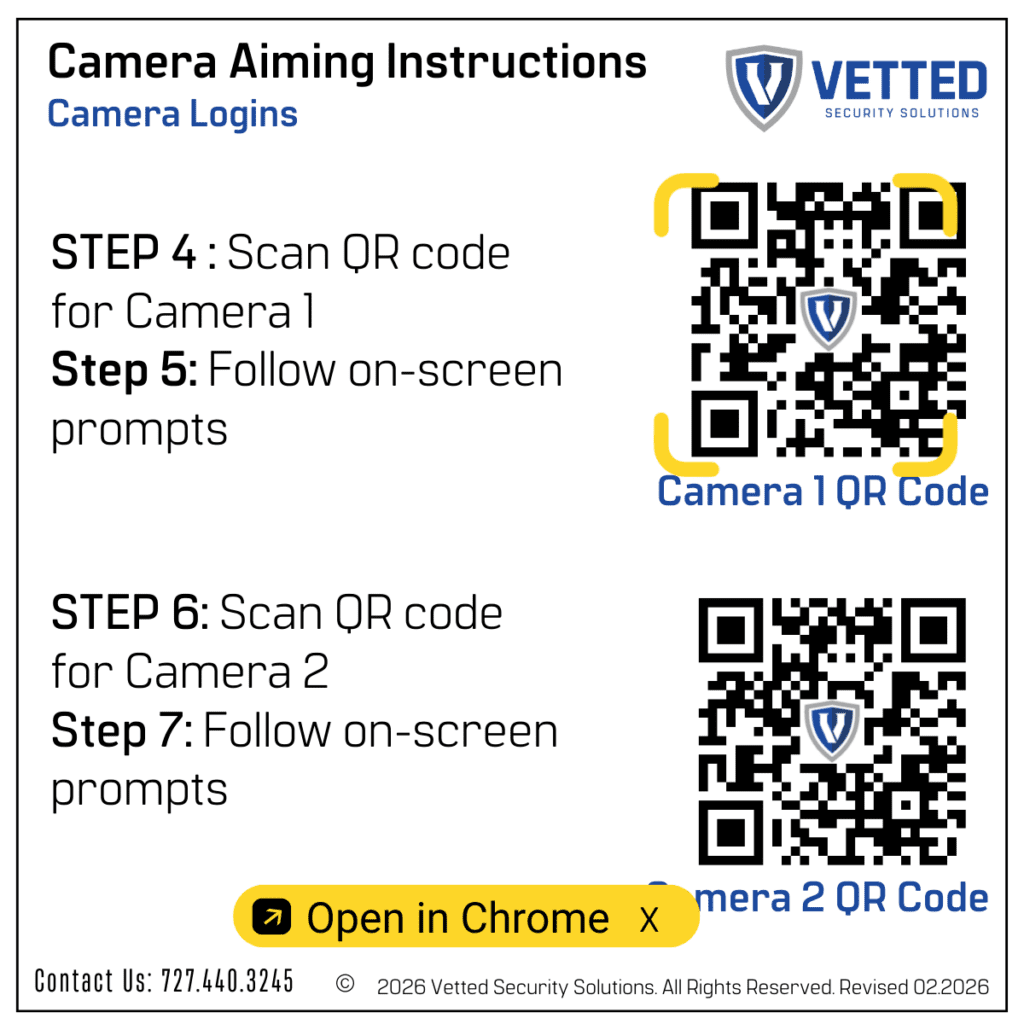
- Inside you will see two QR codes:
- Top QR Code – Camera 1
- Bottom QR Code – Camera 2
- Scan the first QR code using your phone’s camera.
- When prompted, select “Open in Chrome.”
Step 3: Log In to the Camera
- Enter the camera login credentials.
- After logging in, you will arrive at the camera home screen.
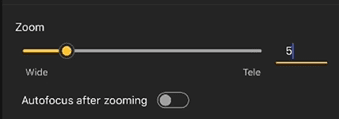
- Scroll down until you locate the Leveling Assistant.
- Set the camera to 5x zoom.
Step 4: Adjust the Camera Position
- Loosen the knob securing the camera.
- Return to the camera UI and view the live video feed.
- Adjust the camera to properly capture passing traffic.
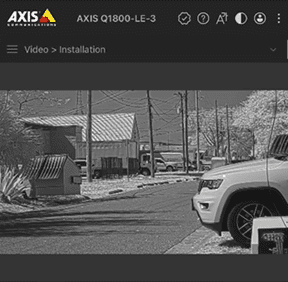
Note: Do not zoom in too far. The camera must capture entire vehicles fully within the frame.
Ensure the camera:
- Is level
- Is not pointed too far downward toward the road
- Is not pointed upward toward the sky
- Wait for a vehicle to pass to confirm the camera positioning.
Step 5: Verify Plate Capture
- At the top of the camera UI, select the three-line menu icon.
- Open the dropdown menu and select:
Apps → Axis License Plate Verifier (ALPV)

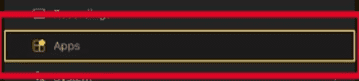
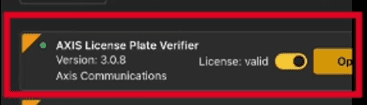
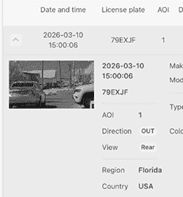
Within the application, check for the vehicle that just passed.
The system should capture images of the vehicle and license plate along with identifying information.
If no vehicle appears:
- The camera may be zoomed too far in
- The camera may need repositioning
Step 6: Secure the Camera
- Once positioning and capture are confirmed:
- Tighten the camera knob
- Use a T5 Allen key to secure the screw next to the knob.
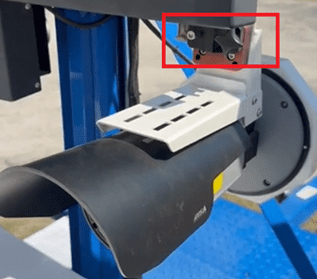
The camera deployment is now complete.